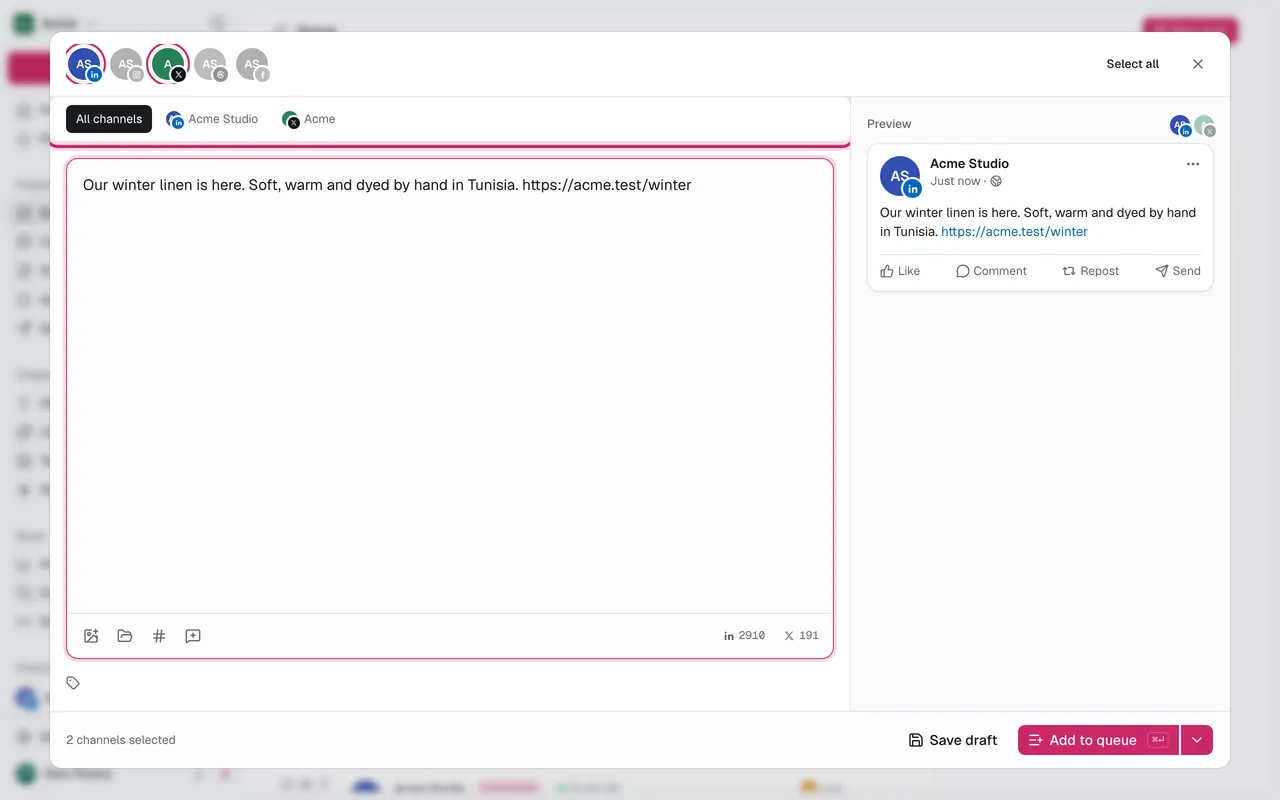
When you pick more than one channel, the composer shows one tab per channel. The All channels tab is the shared version.
- 1
Step 1: Find the channel tabs
Pick two channels or more. Tabs appear above the text : All channels, then one tab per channel.
- 2
Step 2: Edit one channel
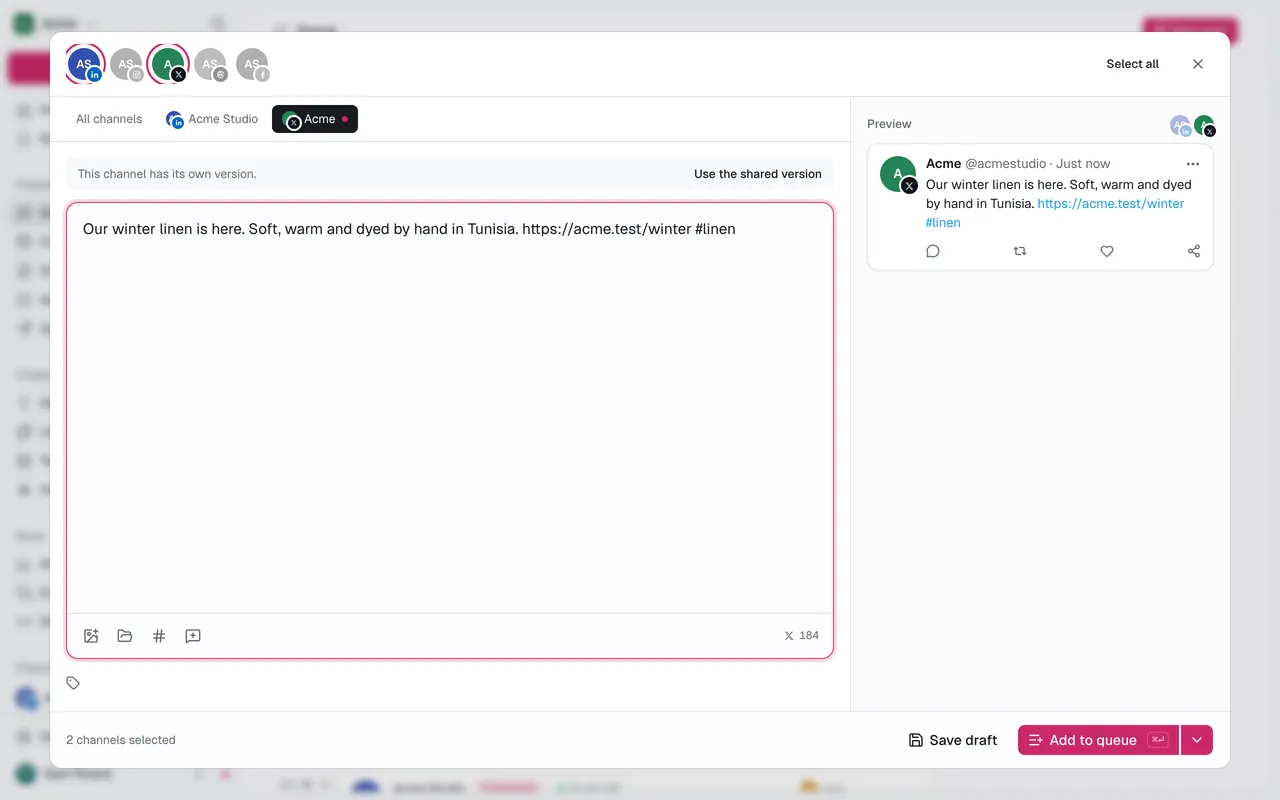
Click the tab of a channel and change the text. Changes here apply to this channel only. For example, add hashtags for X only.
- 3
Step 3: See which channels have their own version
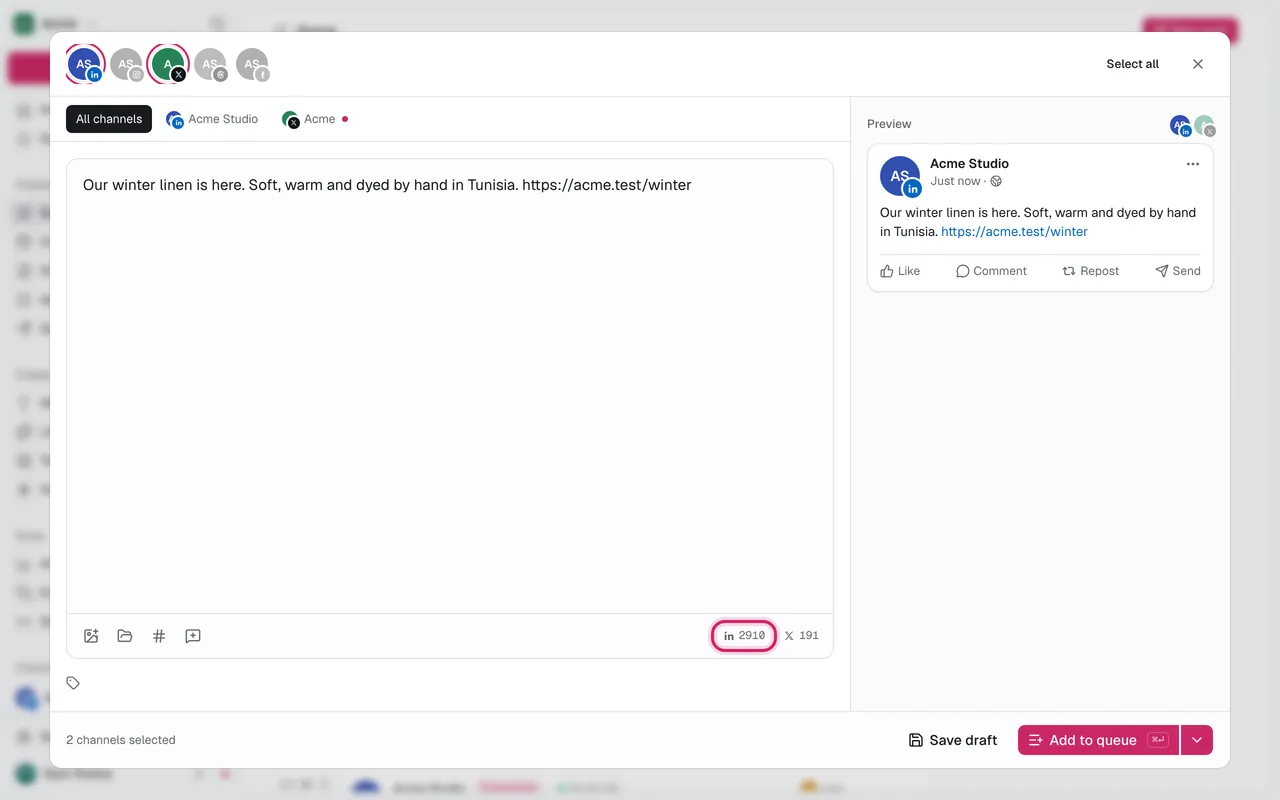
A dot on a tab means the channel has its own version. A red sign means the post breaks a rule of that network, for example it is too long.

- 4
Step 4: Go back to the shared text
Open the All channels tab to edit the text for the others. To drop a custom version, open its tab and choose Use the shared version.
More Publish tutorials
All Publish tutorialsWrite your first post
Pick your channels, write once, check the preview and add the post to the queue.
Beginner3 min5 stepsSchedule a post for a date
Pick an exact day and time instead of the next free time in the queue.
Beginner2 min3 stepsUse the queue
See what goes out next, filter by channel and change the order of your posts.
Beginner3 min4 steps