Use a date for posts tied to an event : a launch, a sale, a live session.
- 1
Step 1: Open the publish menu
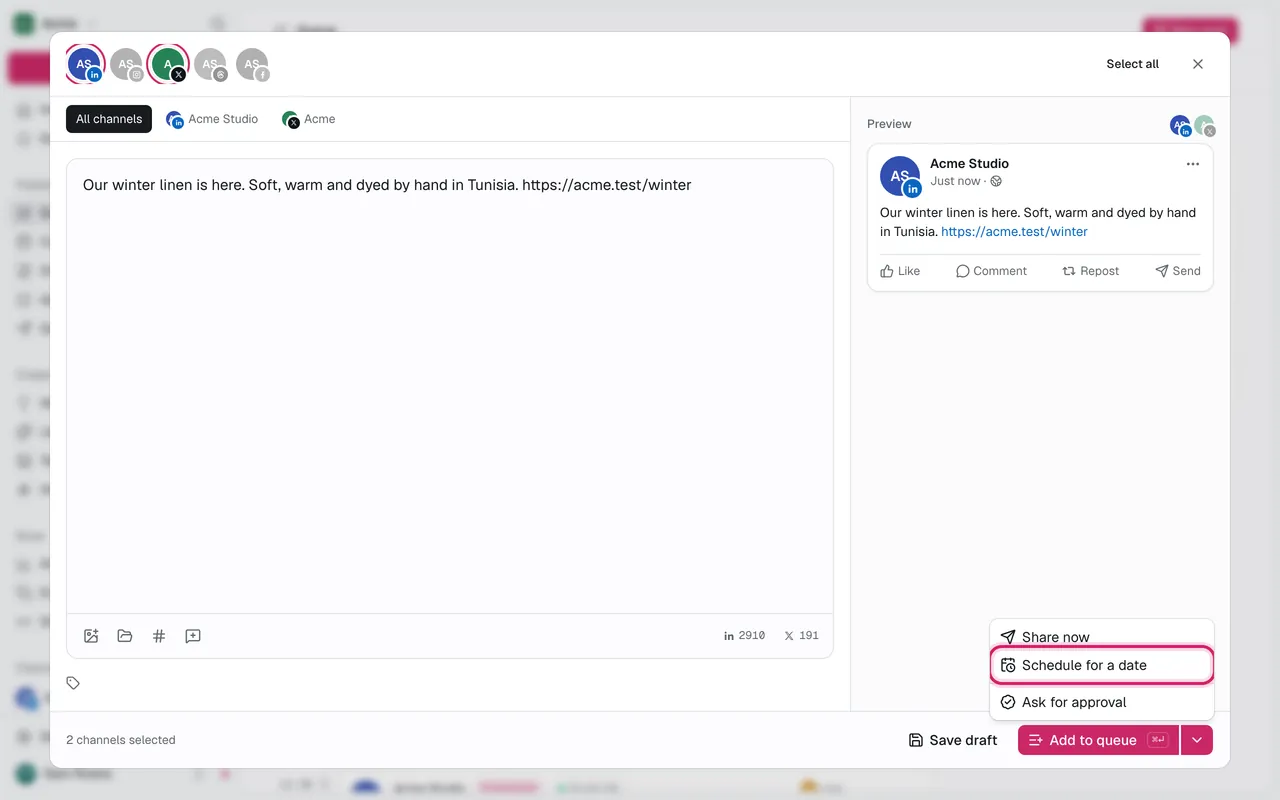
Write your post. Click the arrow next to Add to queue and choose Schedule for a date.
- 2
Step 2: Pick the day and time
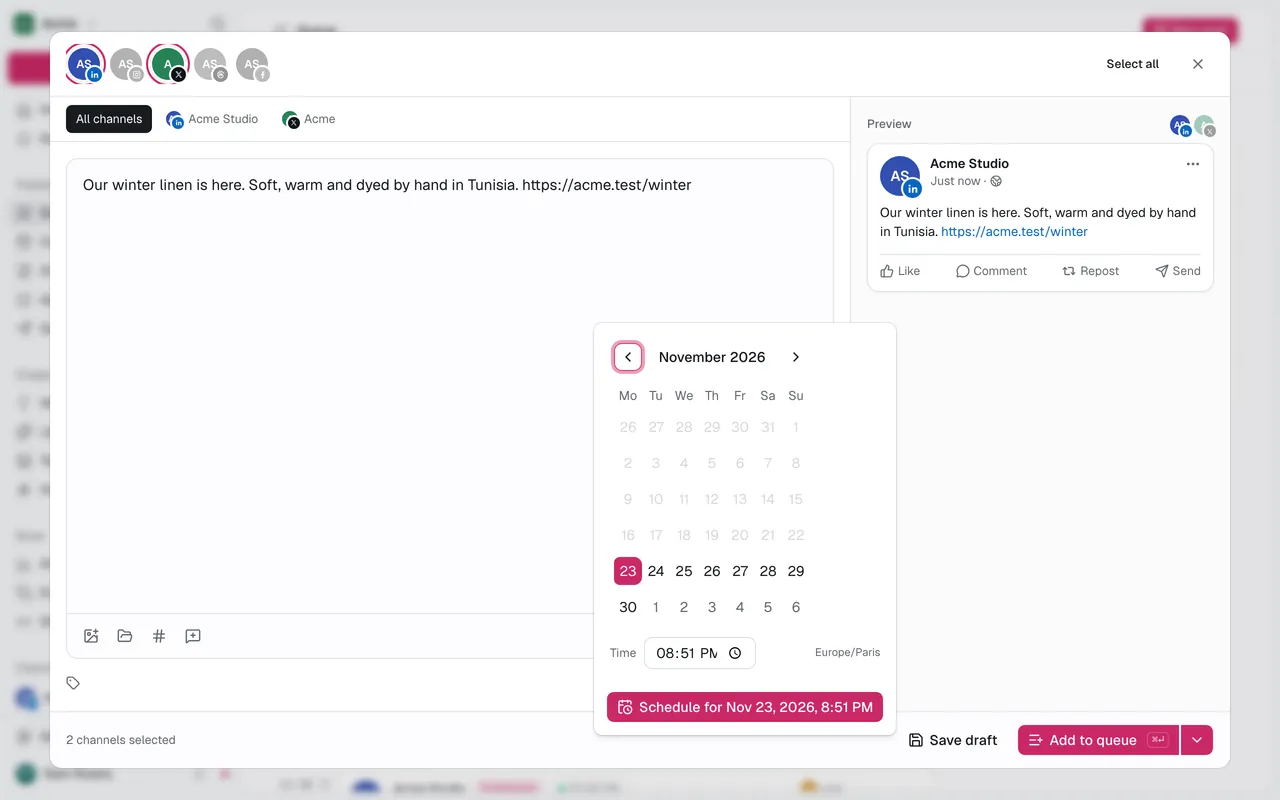
Choose the day in the calendar and type the time. The time follows the channel's time zone. Click the button to schedule.
- 3
Step 3: See it in the calendar
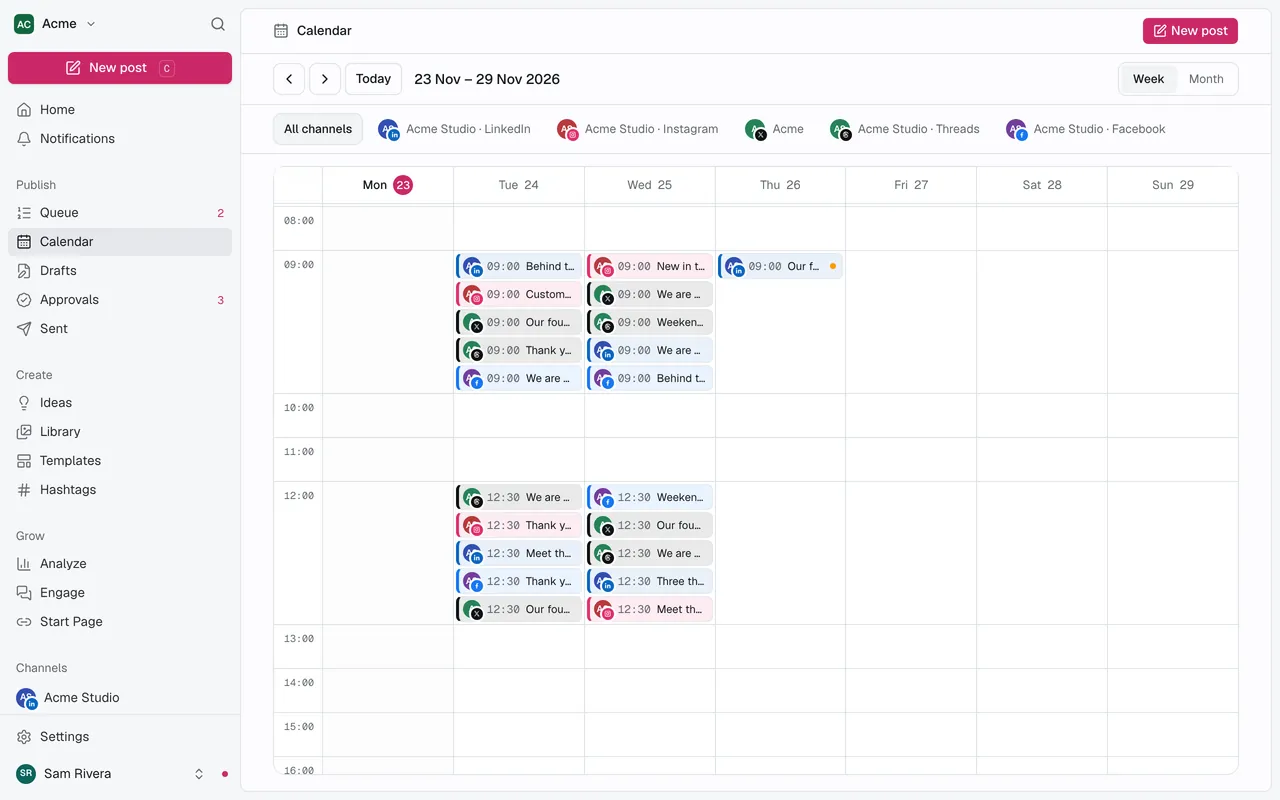
Open Calendar. The post sits on its day and time. Drag it to another time to move it.
More Publish tutorials
All Publish tutorialsWrite your first post
Pick your channels, write once, check the preview and add the post to the queue.
Beginner3 min5 stepsCustomize a post for each network
Keep one shared text and change it for one channel only when you need to.
Intermediate3 min4 stepsUse the queue
See what goes out next, filter by channel and change the order of your posts.
Beginner3 min4 steps