A notify-me channel does not need a connection to the network. When a post is due, Sharelyne sends you a push. You open it, copy the text and the media, and post yourself.
- 1
Step 1: Pick the network
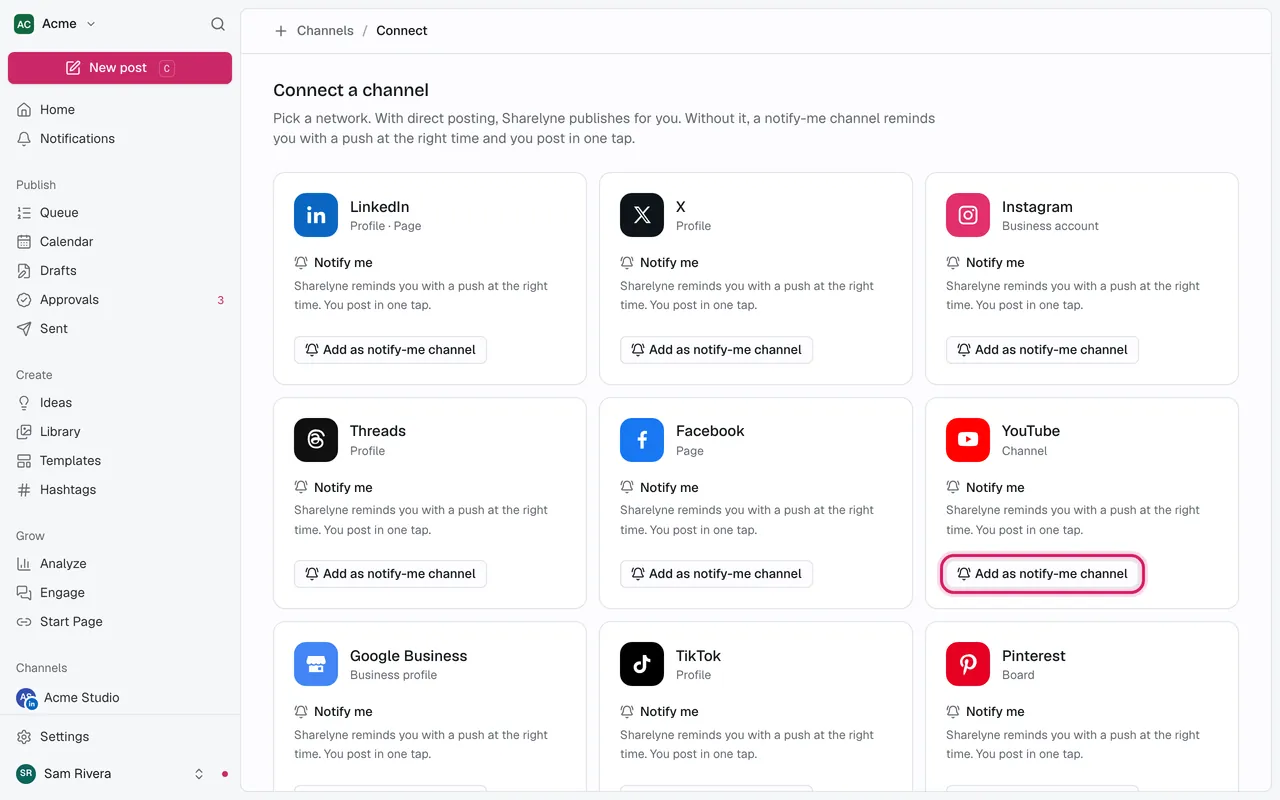
Go to Channels › Connect a channel. On the network card, click Add as notify-me channel.
- 2
Step 2: Name the channel
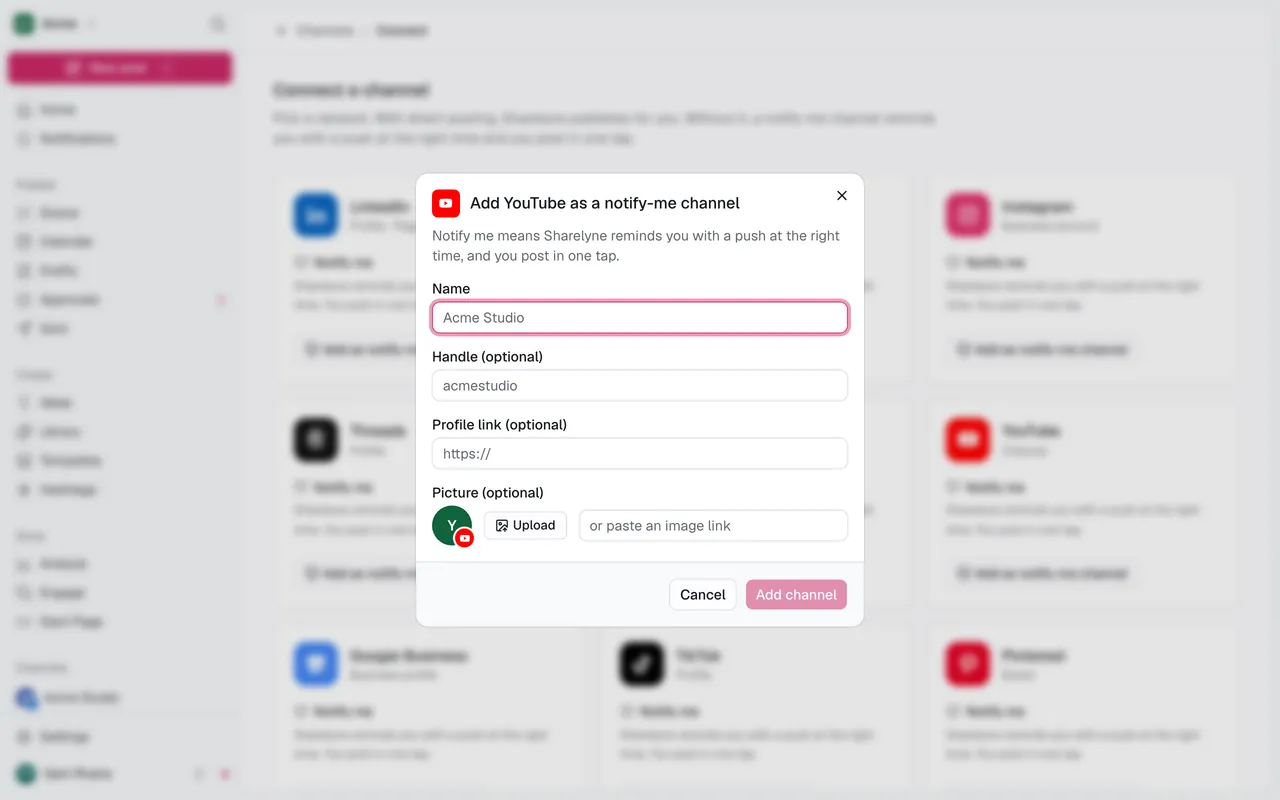
A window opens. Type the name people see on this account. Sharelyne fills it with your workspace name to start.
- 3
Step 3: Add the details and save
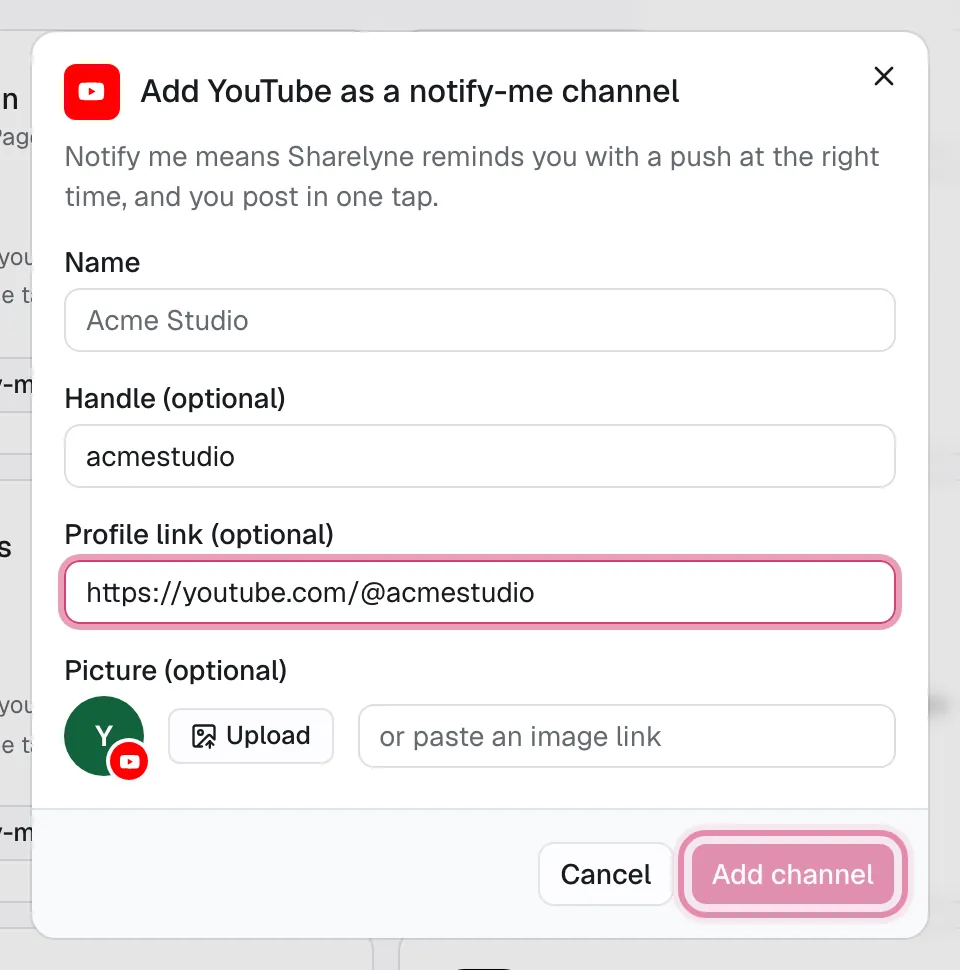
Add the handle, the profile link and a picture if you want. They make the previews look like the real thing. Click Add channel.
- 4
Step 4: Find it in your list
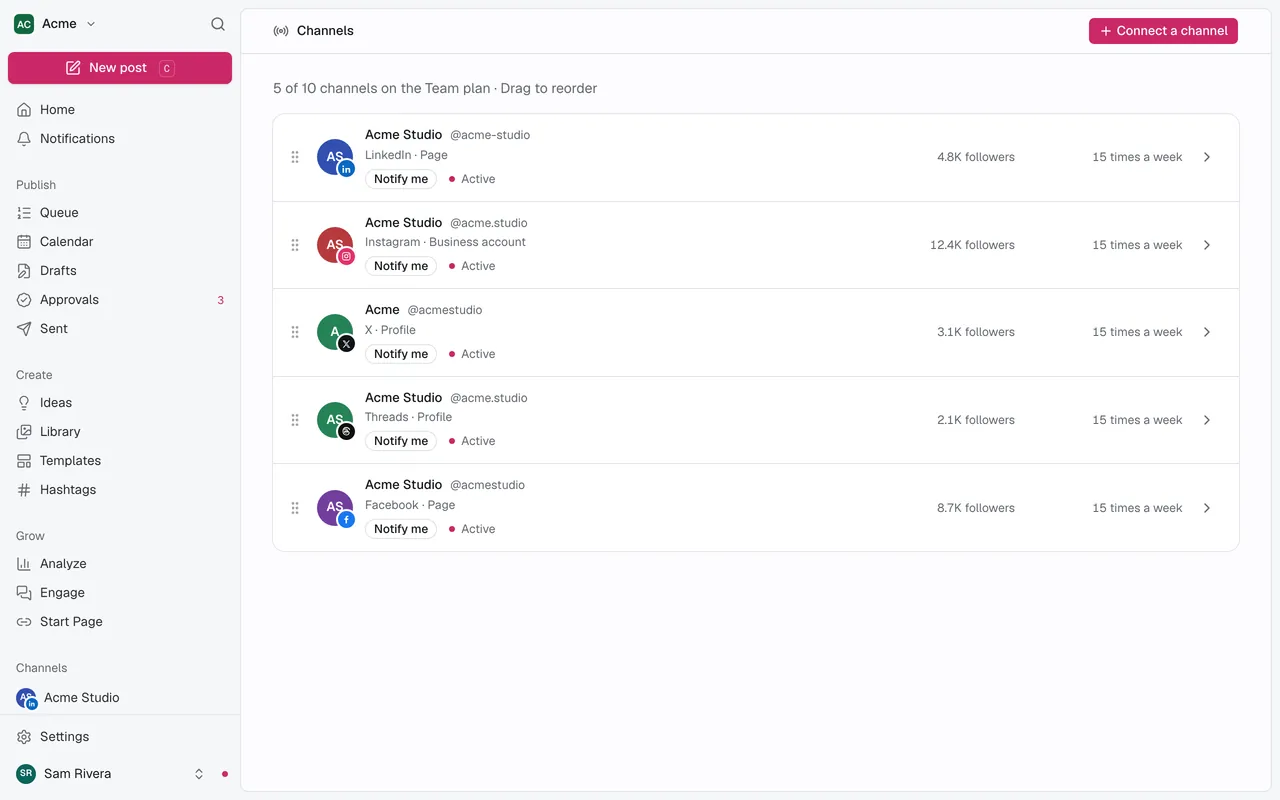
The channel shows Notify me in your channels list. It gets the default posting times. You can now write posts for it.
That’s it
You have finished this tutorial.
More Get started tutorials
All Get started tutorialsCreate your account and workspace
Sign up, name your workspace and land on your home page in two minutes.
Beginner2 min4 stepsConnect a channel with direct posting
Link a social account so Sharelyne publishes for you at the right time.
Beginner3 min4 stepsInstall Sharelyne on your phone and turn on reminders
Add Sharelyne to your home screen and get a push when a post is ready to share.
Beginner3 min5 steps