A channel is one social account : a LinkedIn page, an Instagram business account, a YouTube channel. With direct posting, Sharelyne publishes the post itself through the network's official connection.
- 1
Step 1: Open your channels
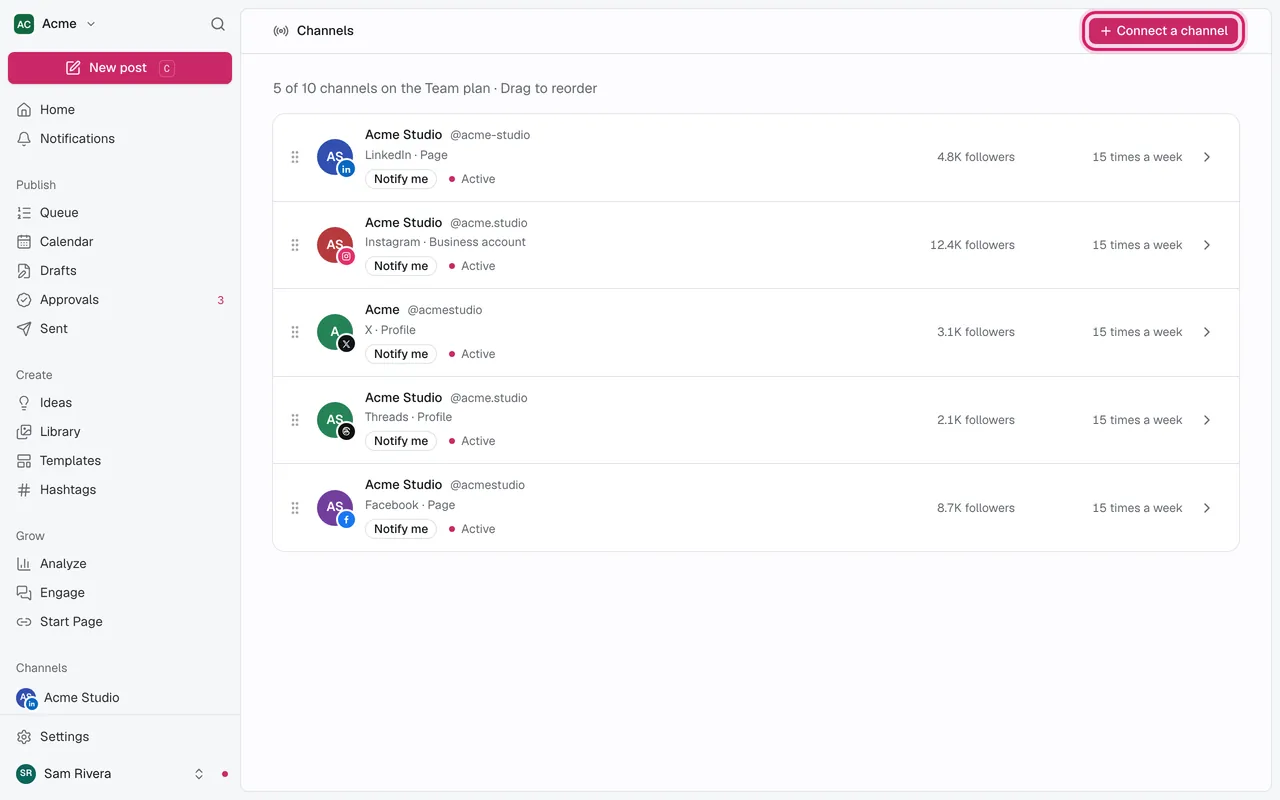
Click Channels in the sidebar or in Settings. Then click Connect a channel.
- 2
Step 2: Pick a network
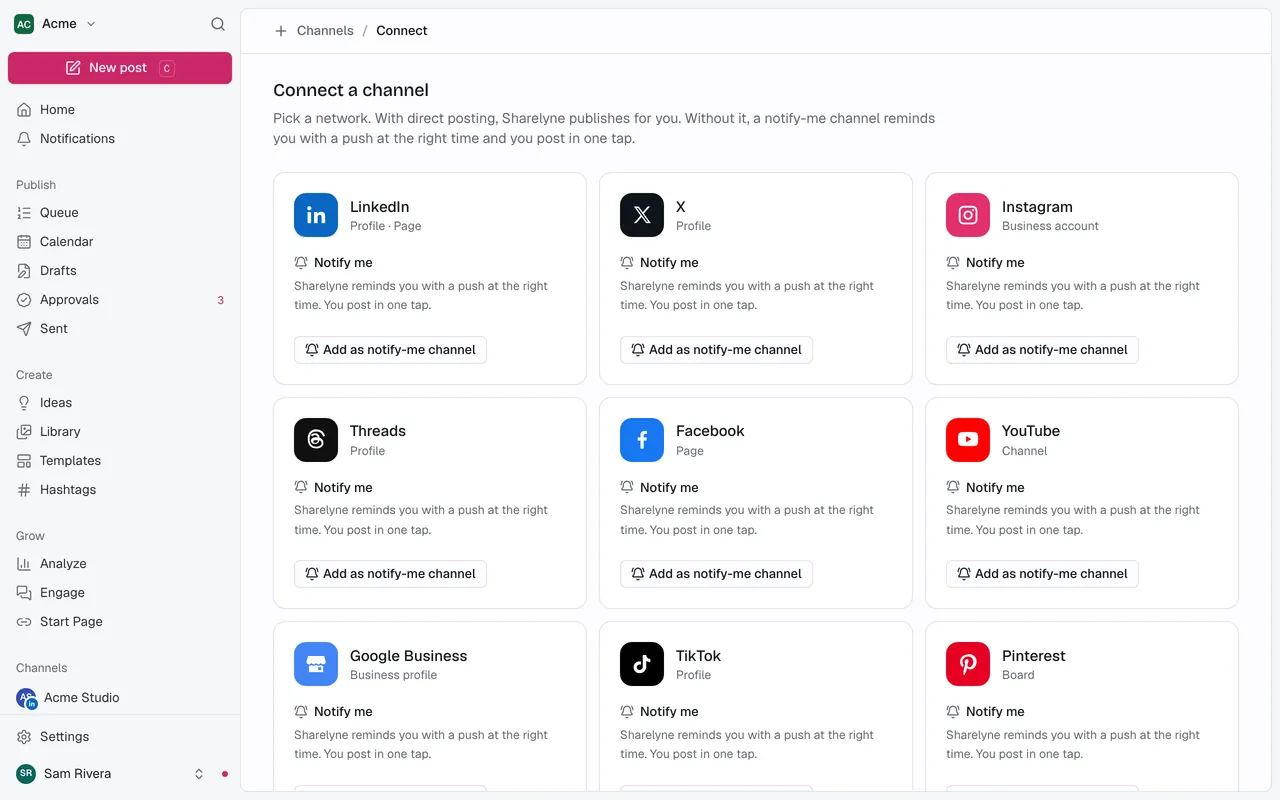
You see every network Sharelyne supports : LinkedIn, X, Instagram, Threads, Facebook, YouTube, Google Business, TikTok and Pinterest. Each card says how Sharelyne posts to it.
- 3
Step 3: Choose direct posting
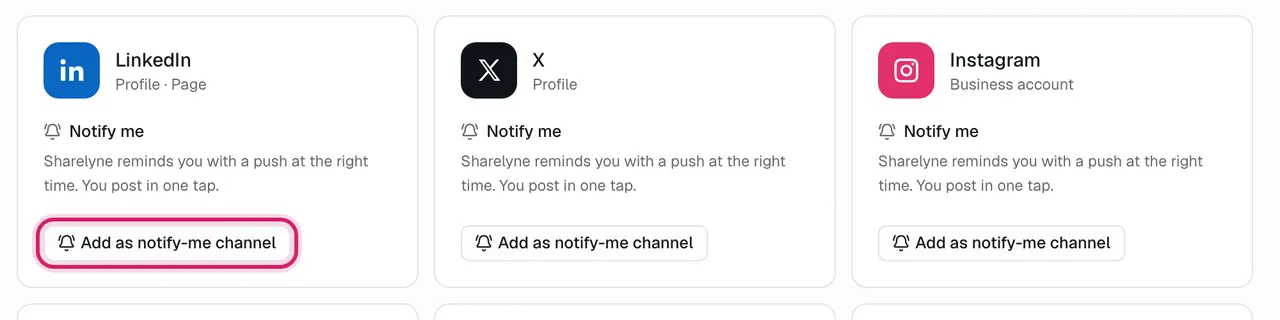
When direct posting is open for a network, its card shows a Connect button. Click it, sign in to the network and allow Sharelyne to post. Then pick the pages or profiles to add. If the card only shows Add as notify-me channel, direct posting is not open for that network yet : use a notify-me channel instead.
- 4
Step 4: Check your new channel
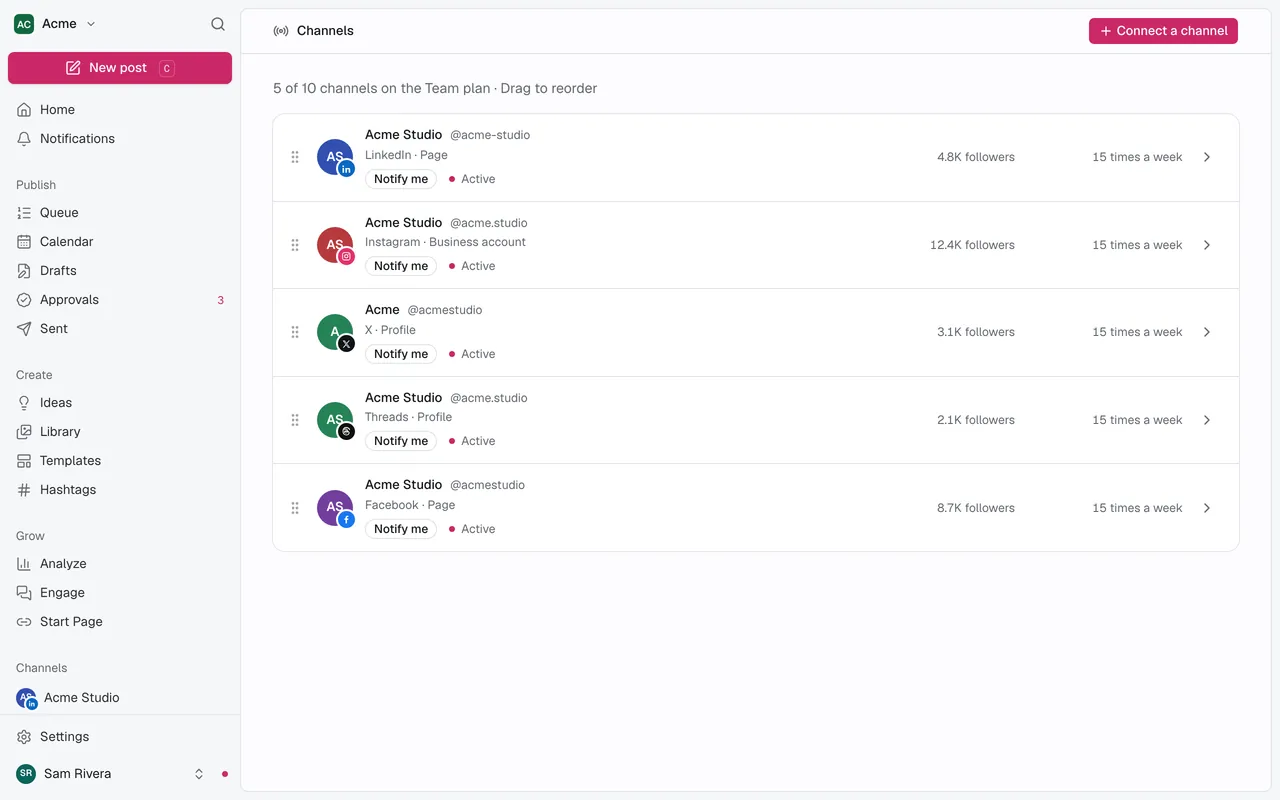
You come back to your channels list. The new channel shows its network, its followers and its posting times. Drag a row to change the order of your channels.
More Get started tutorials
All Get started tutorialsCreate your account and workspace
Sign up, name your workspace and land on your home page in two minutes.
Beginner2 min4 stepsAdd a notify-me channel
Plan posts for any network. Sharelyne reminds you on your phone and you post in one tap.
Beginner2 min4 stepsInstall Sharelyne on your phone and turn on reminders
Add Sharelyne to your home screen and get a push when a post is ready to share.
Beginner3 min5 steps