Each network has its own media rules. Sharelyne checks them in the composer and marks what to fix in red.
- 1
Step 1: Choose where the media comes from
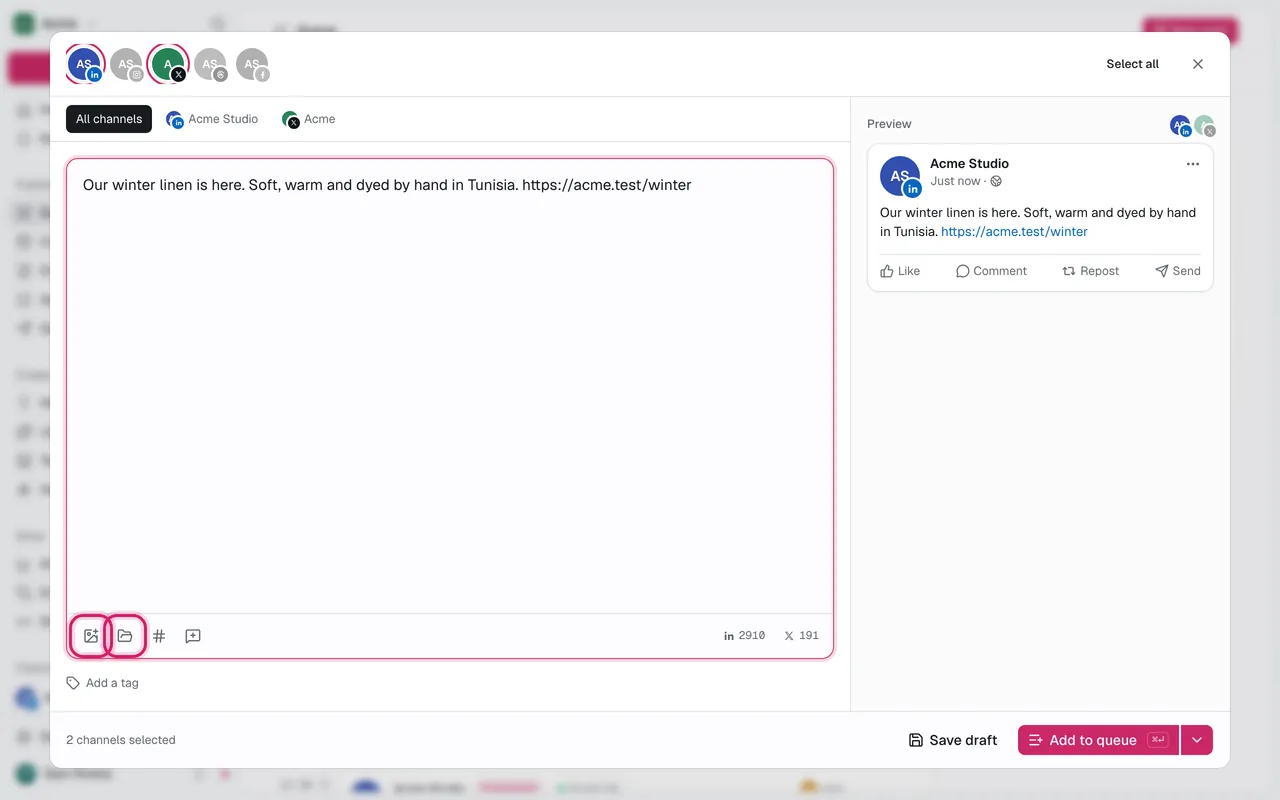
Under the text, click the image button to upload images or a video from your device. Click the folder button to pick from your library. You can also drag files onto the composer.
- 2
Step 2: Pick from the library
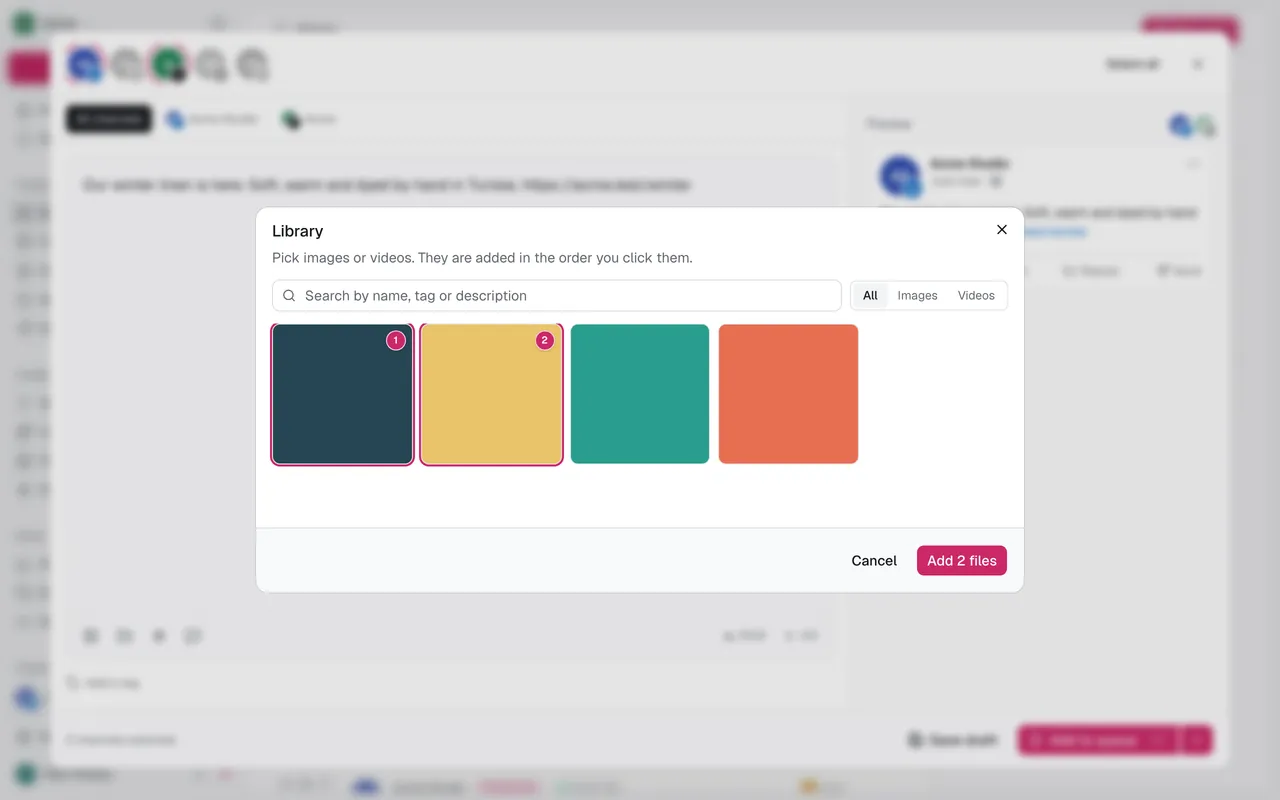
Click the files you want. They are added in the order you click them. The button counts them : click Add 2 files.
- 3
Step 3: Check the result
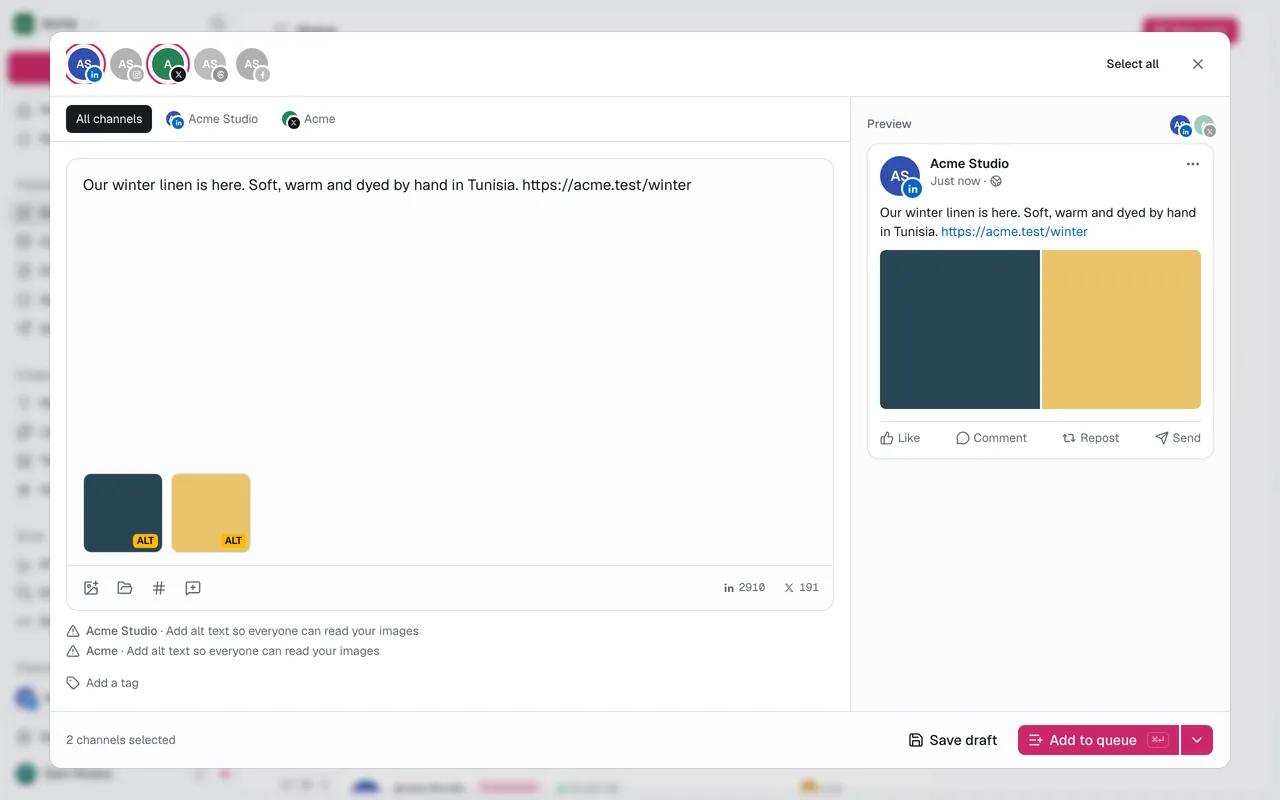
The media shows under the text and in the preview. Several images make a carousel on the networks that support it. Drag the images to change their order.
More Create tutorials
All Create tutorialsWrite alt text for your images
Describe each image so people who use a screen reader know what it shows.
Beginner1 min3 stepsAdd a first comment
Post links or hashtags as a comment, right after the post.
Intermediate1 min3 stepsPlan with the ideas board
Write ideas down when they come, sort them in columns and turn them into posts.
Beginner3 min4 steps