A post fails when the network refuses it : an expired connection, a media the network does not accept, a text too long. Sharelyne tells you at once.
- 1
Step 1: Find the failed posts
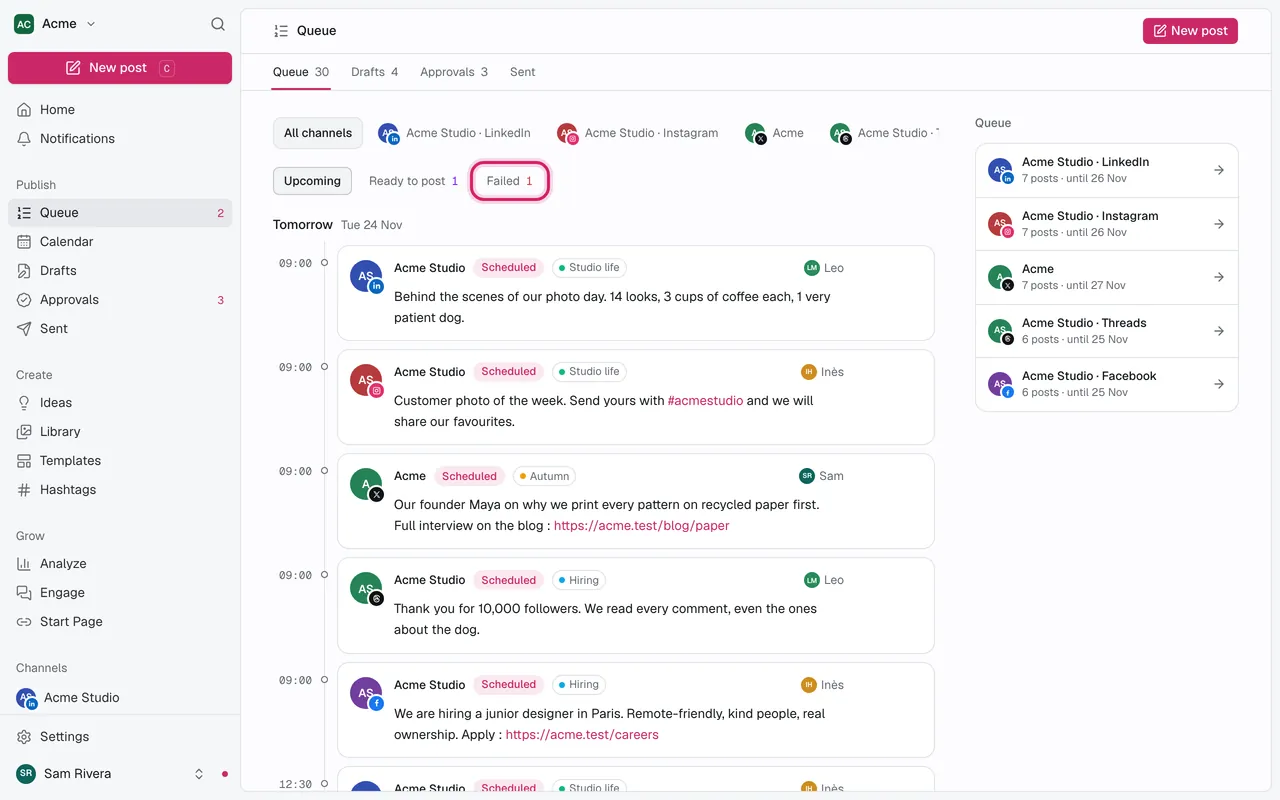
Open Queue and click Failed. The number shows how many posts failed. You also get a notification.
- 2
Step 2: Read the reason
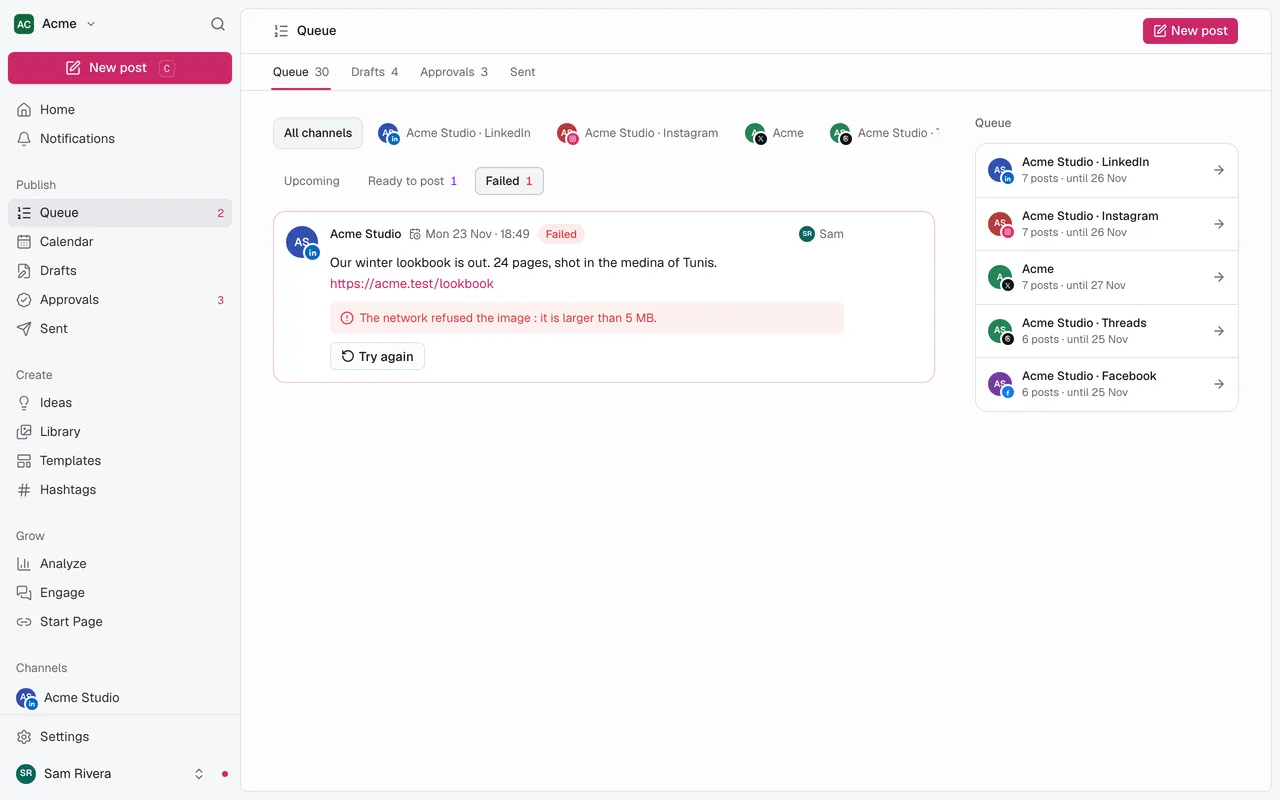
Each failed post shows the reason the network gave. Fix the cause : reconnect the channel, change the media or edit the text.
- 3
Step 3: Try again
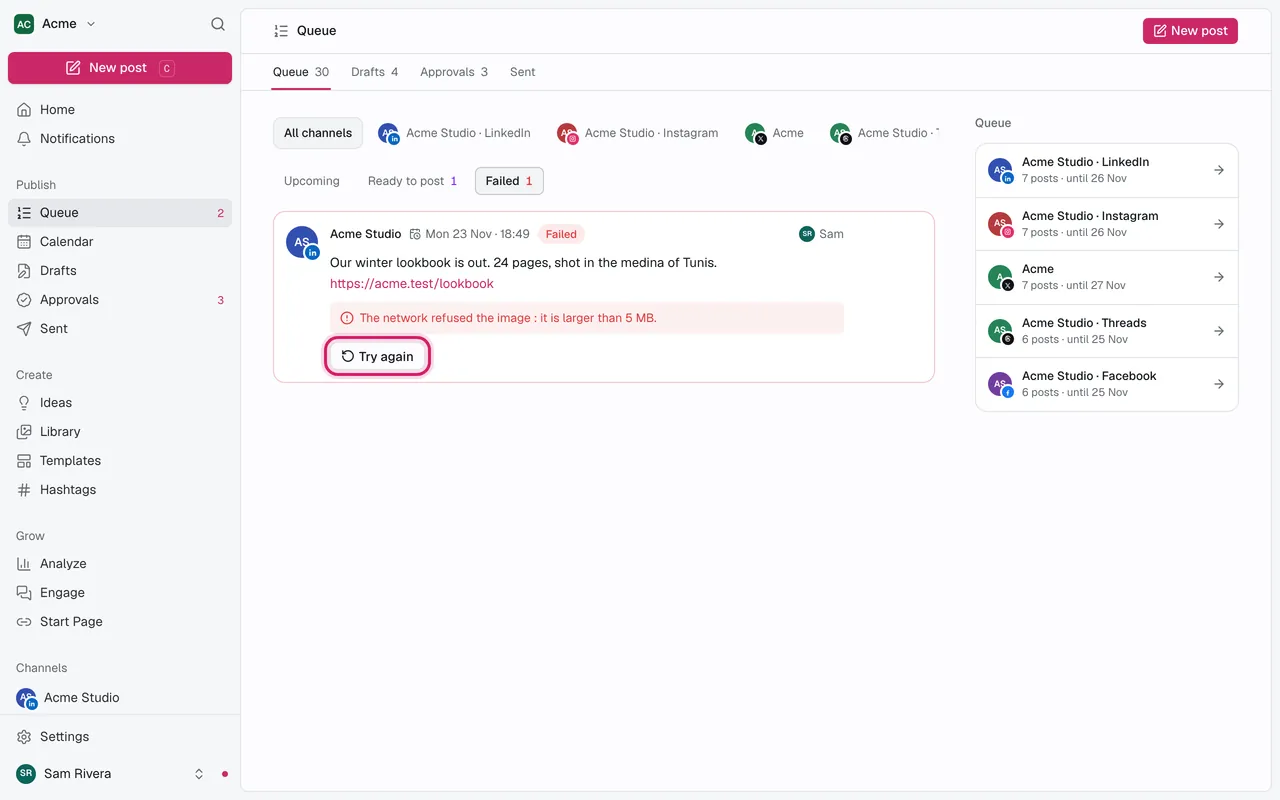
Click Try again, or open the post, fix it and add it to the queue again.
That’s it
You have finished this tutorial.
More Publish tutorials
All Publish tutorialsWrite your first post
Pick your channels, write once, check the preview and add the post to the queue.
Beginner3 min5 stepsCustomize a post for each network
Keep one shared text and change it for one channel only when you need to.
Intermediate3 min4 stepsSchedule a post for a date
Pick an exact day and time instead of the next free time in the queue.
Beginner2 min3 steps