Two-step verification stops someone who has your password from signing in.
- 1
Step 1: Set it up for yourself
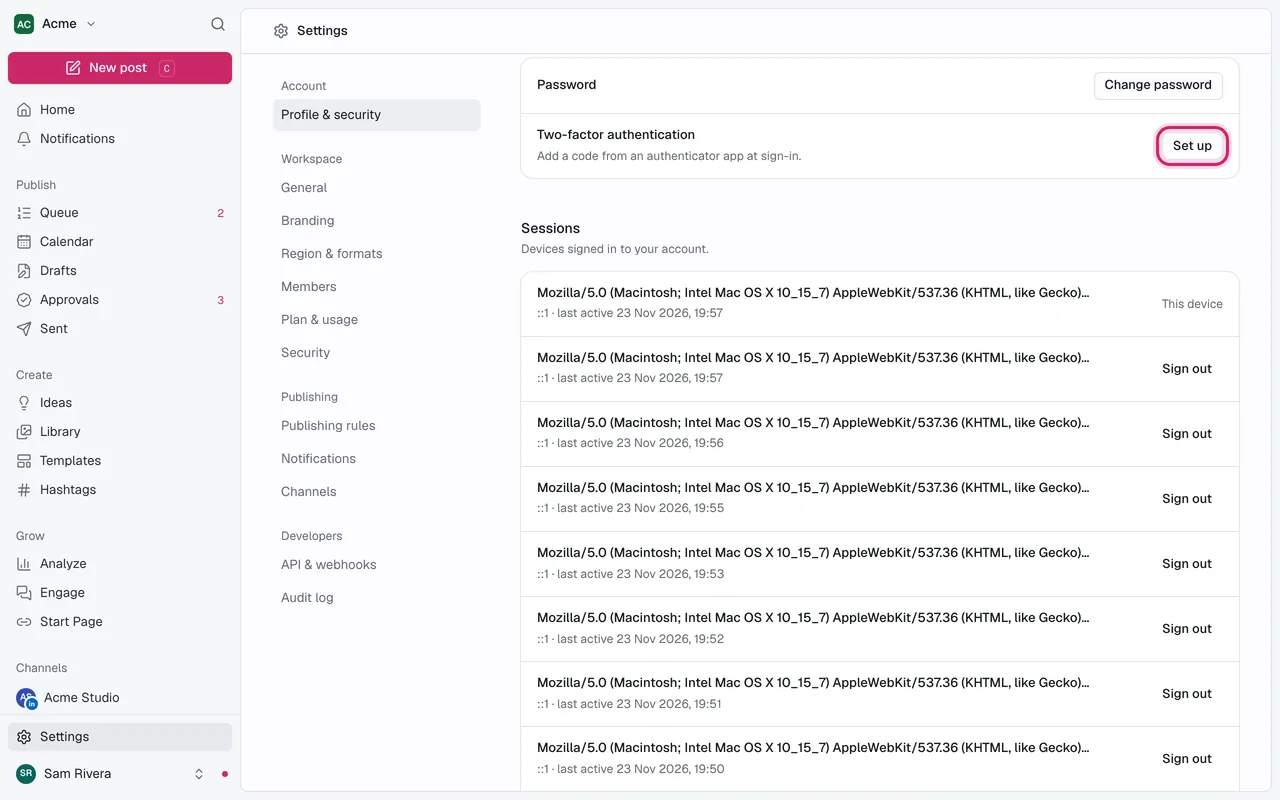
Open Profile and security. Under Two-factor authentication, click Set up and scan the code with your authenticator app.
- 2
Step 2: Require it for everyone
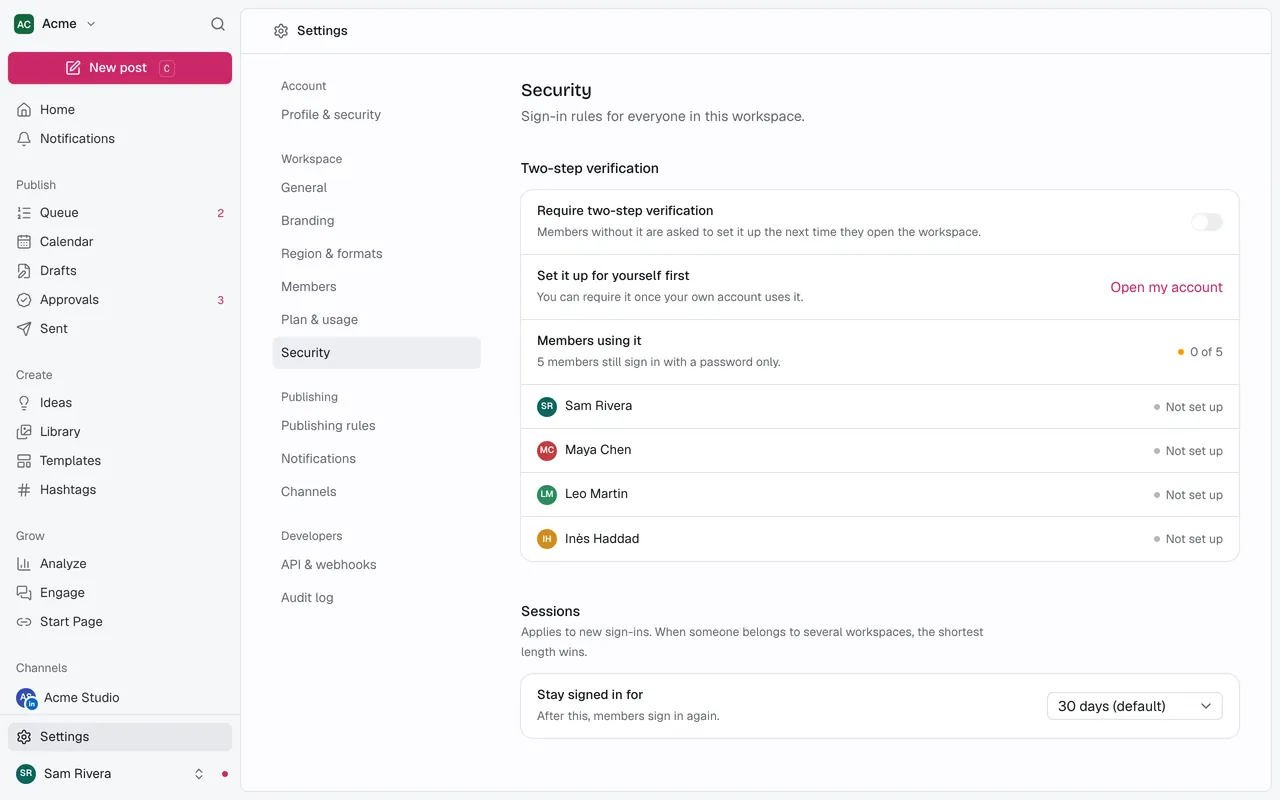
In Settings › Security, turn on Require two-step verification. Members without it set it up the next time they open the workspace. You also choose how long people stay signed in.
- 3
Step 3: Check the audit log
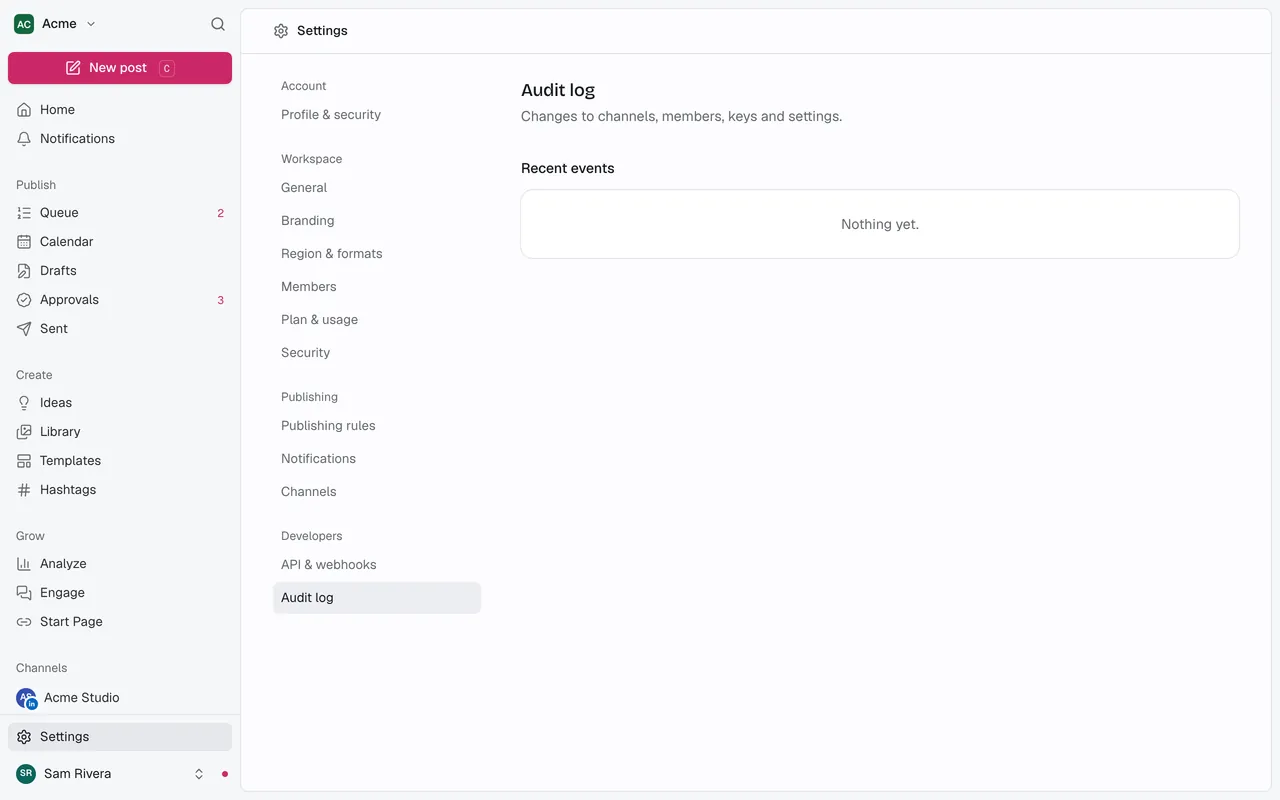
Settings › Audit log lists the changes to channels, members, keys and settings, with who made them.
That’s it
You have finished this tutorial.
More Team tutorials
All Team tutorialsInvite your team and set roles
Add people to your workspace and choose what each one can do.
Beginner2 min4 stepsTurn on approvals for your team
Make posts by members wait for an admin before they go out.
Intermediate2 min3 stepsYour plan, limits and payment
See your plan, what it includes and how much of it you use.
Beginner2 min3 steps